Getting Started
Due to the beta nature of the software, many of the setup steps are still being streamlined. Some steps may feel quite manual at the moment, but this will improve over the coming months.
Running from binaries
Download the correct binaries from the links below, or from the downloads page. Make sure you download both the client and the server.
Currently, the client and server binaries must be run separately. A launcher is on the roadmap which will download, configure, and run both for you automatically.
| Operating System | Architecture | Size | Download |
|---|---|---|---|
| macOS | universal | 52 MB | Download |
| linux | x86_64 | 33 MB | Download |
| windows | x86_64 | 30 MB | Download |
| Operating System | Architecture | Size | Download |
|---|---|---|---|
| macOS | universal | 51 MB | Download |
| linux | x86_64 | 31 MB | Download |
| windows | x86_64 | 28 MB | Download |
Once both files are downloaded, open them both.
Note: It is recommended to launch the server binary from a command line. If launched by double-clicking, server logs will not be visible, as it’s headless.
Network Configuration (Client)
Firewall notice: The networking system used by Spectrum (Constellation / ConstaNet) uses dynamic port assignment (https://en.wikipedia.org/wiki/Ephemeral_port ).
This allows multiple Constellation instances to run on the same device and network interface. However, this can cause issues with firewalls, as you cannot simply open a single port, any port within a range may be used.
If you are using an application-based firewall (built-in on macOS, and some Windows installs. With third-party options available on Linux), this is not an issue, as you can allow the entire application.
If you are using a transport-based firewall (standard on some Windows configurations and Linux setups), this becomes trickier.
You have three options:
- Disable the firewall entirely (NOT recommended for obvious reasons)
- Manually open the ports listed in the CLI output when running the program (slow, tedious, and ports change each time the app restarts)
- Use an application-based firewall (recommended)
This issue is being actively worked on while we explore better long-term solutions.
Once you open the client, you should see the following UI:
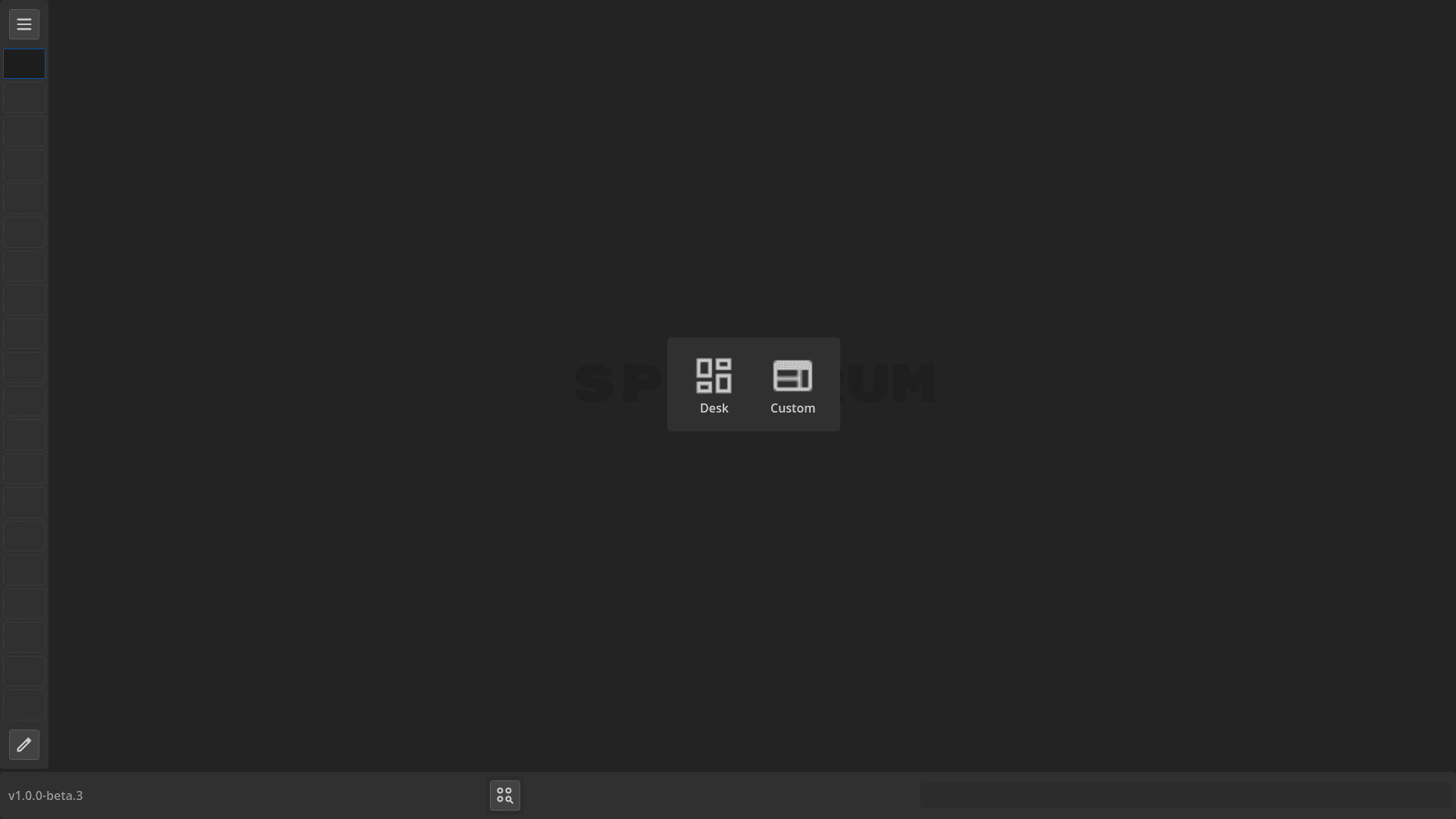
We’ll go over the full client interface on the next page (/guide/client-ui), but for now, let’s open the NetworkManager.
First, open the main menu (shown below):
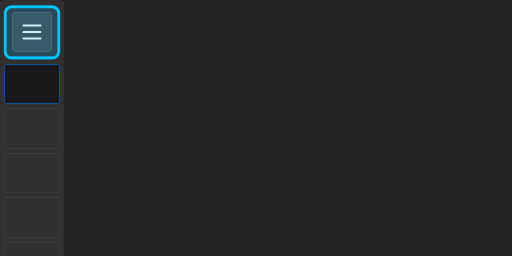
Once the menu is open, click NetworkManager.
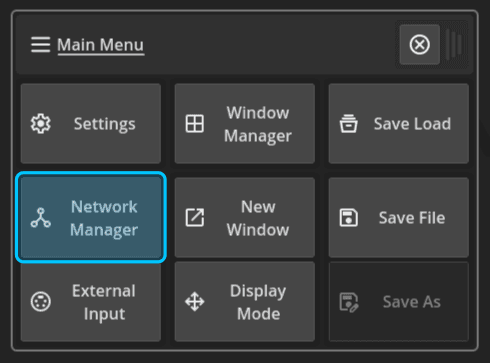
After NetworkManager opens, click on the Config tab.
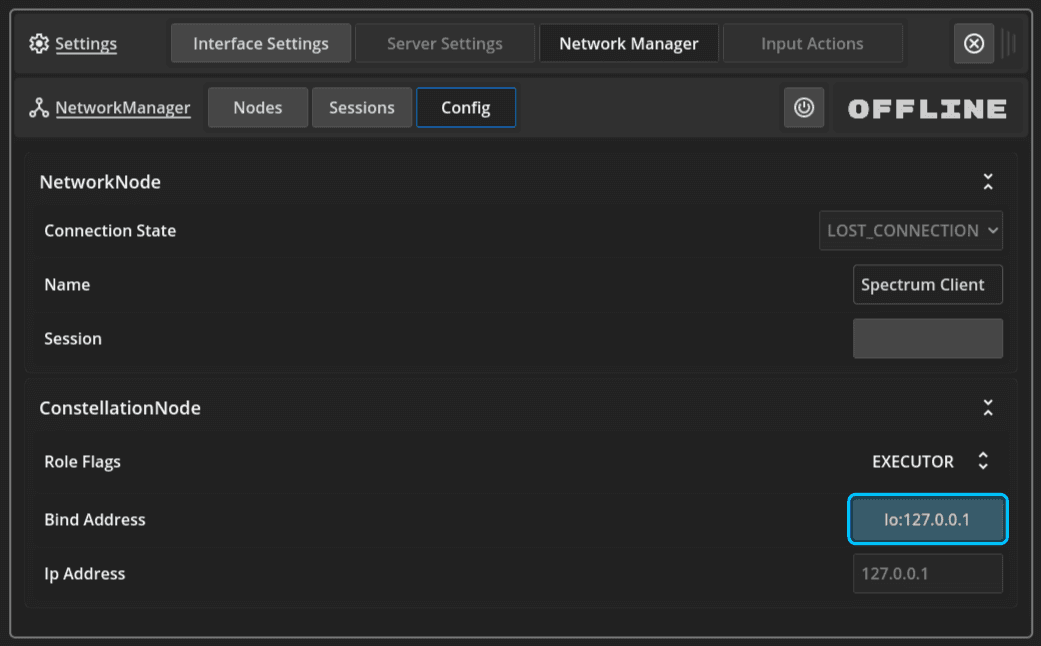
At the bottom of this menu, there is an option titled Bind Address. Clicking this will open the following menu:
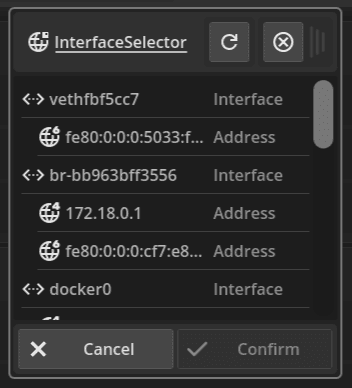
From this list, select the correct network interface for Spectrum to bind to.
Due to limitations with multicast traffic on most platforms, the bind address cannot be set to loopback (for example 127.0.0.1), even when connecting to a server running on the same device.
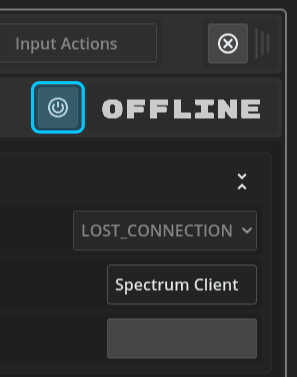
Once an interface has been selected, you must restart the networking system. This can be done by pressing the power button twice.
Network Configuration (Server)
Now that the client’s networking has been set up, we need to configure the server’s networking as well.
This can be done in one of two ways:
- Set the network bind address and interface name using CLI arguments
- Copy the network config file from the client to the server’s data folder
Note: On Windows, copying the config file is recommended, as Windows network interface identifiers are UUID-based and less user-friendly.
Setting network config via CLI arguments
If the server is currently running, stop it. If you started the server from a command line, you can stop it by pressing CTRL + C.
Restart the server with the following arguments:
--ctl-address {ip_address}--ctl-interface {interface_name}
You can find the {ip_address} and {interface_name} in the InterfaceSelector used earlier when configuring the client.
Example: ./spectrum_server_binary --ctl-address 192.168.1.70 --ctl-interface eth0
When the server is run with these arguments, they will be saved to the config file. This step only needs to be done once.
Copying the network config file
Alternatively, you can copy the network configuration file from the client to the server’s data folder.
The client data folder can be found at:
| Platform | Path |
|---|---|
| Linux | $HOME/.local/share/SpectrumClient |
| macOS | $HOME/Library/Application Support/SpectrumClient |
| Windows | %APPDATA%/SpectrumClient |
From this folder, copy the file constellation.conf into the SpectrumServer data folder (same path as above, but replace SpectrumClient with SpectrumServer).
Note: Make sure you have launched the server at least once, as this creates the SpectrumServer folder.
Once copied, start the server again. It will now use the same network interface and address as the client.
Discovering the server and creating a session
With both the client and server configured, you should now see the server listed under the Nodes tab inside the NetworkManager window.
If the server appears, that means the client and server can successfully see each other.
The next step is to create (or join) a Session.
A Session groups nodes into a logical network cluster where they share a single show file. Each session has a session master, which performs all processing for that session.
If the session master goes offline, another node in the session will automatically take over.
The server automatically creates a session by default. Switch to the Session tab, and you should see a session named something like “Spectrum Server’s Session”.
Select it, then click Join in the bottom-right corner of the popup.
You have now successfully joined a session.
On the next page, we’ll walk through the client user interface and how it is laid out. If you’d rather skip ahead and start patching immediately, jump to /guide/patching.